Mountio USB device monitor icon

macOS USB Mount Manager

Auto-mount and safely unmount USB drives, external SSDs, and dock-attached disks from your Mac menu bar. Stop the "Disk Not Ejected Properly" error when undocking your MacBook.

Menu Bar Access
Auto-Refresh
Quick Actions
Auto-Mount
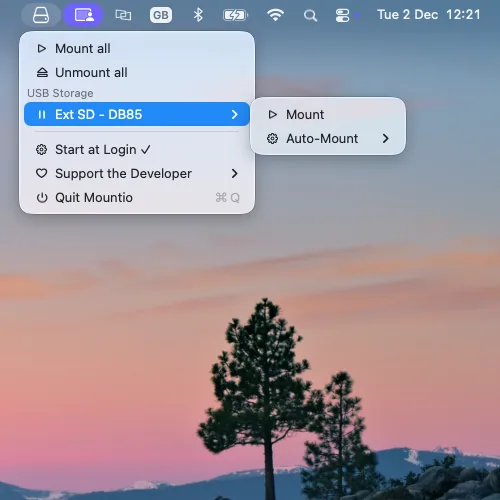
Tired of "Disk Not Ejected Properly" on your Mac?

If you use a USB-C dock, Thunderbolt dock, or hub with a permanently attached external drive, every time you undock your MacBook macOS warns you that the disk was not ejected properly — and repeated improper ejects can corrupt the drive. Mountio is the macOS mount manager built to fix exactly this problem. Read the full guide →

For dock & hub users

Disable auto-mount for dock-attached disks so macOS stops mounting them every time you reconnect — no more eject warnings when you grab your laptop and go.

One-click safe unmount

Unmount a single drive or every drive at once from the menu bar before you undock. No Finder, no Disk Utility, no Terminal.

Protect your data

Avoid filesystem corruption from improper ejects on USB sticks, external SSDs, and HDDs by always unmounting cleanly with a single click.

A native macOS mount manager in your menu bar

Mountio runs quietly in your menu bar, continuously monitoring every USB and Thunderbolt storage device connected to your Mac. Click the icon to see attached USB sticks, external SSDs, and dock-mounted disks with their current mount status — and mount, unmount, or configure each one in a click.

Menu Bar Monitoring

Displays all attached USB sticks in your menu bar with real-time status indicators

Auto-Refresh

Menu automatically updates every 2 seconds to show current device status

Quick Actions

Mount or detach USB sticks with just a few clicks

Smart Status

Clear indicators showing whether devices are mounted or attached

Bulk Operations

Mount all or unmount all USB sticks at once

Auto-Mount Settings

Configure automatic mounting preferences for each USB device

How It Works?

See Mountio in action - from menu bar monitoring to device management

Mountio menu bar icon with USB device count badge on macOS

Menu Bar Icon

Click the icon to see all attached USB sticks with their volume names and status

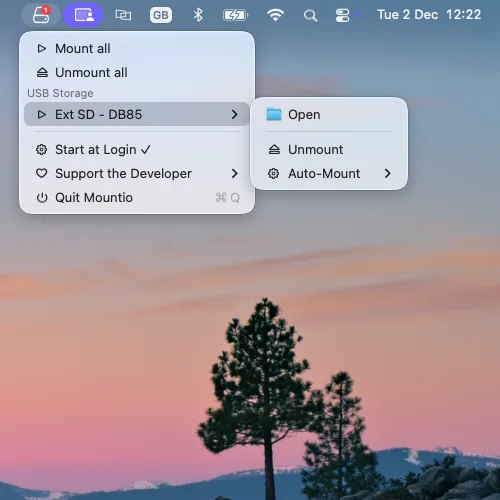
Mountio USB devices list showing all connected USB storage devices

Device Overview

The USB icon shows in your menu bar with a badge indicating the number of mounted devices

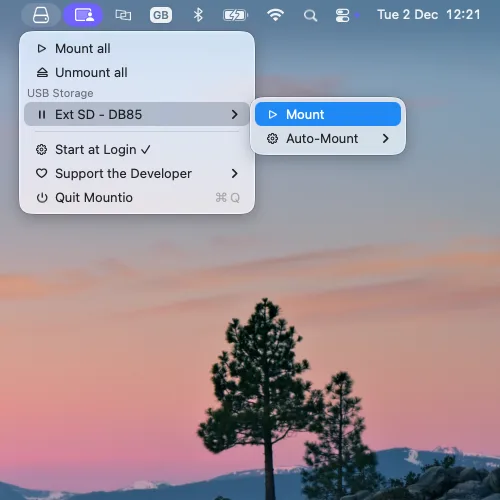
Mountio quick actions menu for mounting and unmounting USB devices

Quick Actions

Access mount/unmount actions for one or all devices together

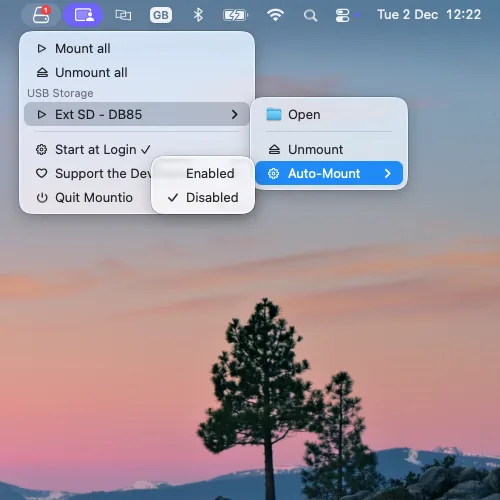
Mountio auto-mount settings configuration for USB devices

Auto-Mount Settings

Disable auto-mount for dock-connected USB sticks to prevent automatic mounting.

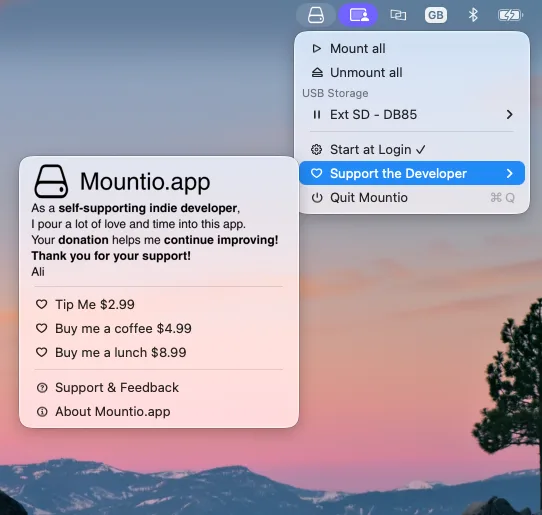
Mountio support and donation options menu

Support and Feedback

Easy access to support, feedback, and donation options

Download Mountio

Get the latest version of Mountio for macOS 12.0 or later

Current Version: 1.0.4 (Build 451)

  • ✓ Menu bar icon with device count badge
  • ✓ Real-time USB device monitoring
  • ✓ Quick mount/detach actions
  • ✓ Auto-mount configuration
  • ✓ Bulk operations (mount all/unmount all)
  • ✓ Support for macOS 12.0+
Download for macOS

Requires administrator privileges for mount/detach operations

System Requirements

Operating System

macOS 12.0 or later

Permissions

Administrator privileges may be required for mount/detach operations

Installation

Drag & drop installation - no complex setup required

Frequently Asked Questions

Common questions about using Mountio as a macOS mount manager.

What is a mount manager on macOS?

A mount manager is a utility that controls when and how external storage devices — USB drives, external SSDs, dock-attached disks — are mounted and unmounted by macOS. Mountio sits in your menu bar and lets you mount, unmount, and configure auto-mount behavior for each USB device individually.

How do I stop the "Disk Not Ejected Properly" error when undocking my MacBook?

The error appears when you disconnect from a dock or USB hub while a disk is still mounted. Mountio fixes this in two ways: you can safely unmount drives with one click before undocking, or you can disable auto-mount for dock-attached disks so macOS does not mount them automatically when you reconnect.

Can I auto-mount or auto-unmount USB drives on macOS?

Yes. Mountio remembers each USB device and lets you set per-device auto-mount preferences. You choose which drives mount automatically and which stay attached but unmounted until you mount them manually from the menu bar.

Does Mountio work with Thunderbolt docks and USB-C hubs?

Yes. Mountio works with any USB or Thunderbolt dock or hub on macOS. It is especially useful for MacBook users with permanently dock-attached external drives — you can disable auto-mount for those disks and prevent improper-eject errors when you undock.

Is Mountio free?

Yes. Mountio is completely free to download and use on macOS 12.0 or later. Donations are optional and help support development.

Which macOS versions are supported?

Mountio supports macOS 12.0 (Monterey) and later, including macOS 13, 14, and 15, on both Intel and Apple Silicon Macs.